Posts

Microsoft Whiteboard for Digital Modelling

Image
Microsoft Whiteboard is another useful app that brings together the best of pen, touch, and digital inking. With Microsoft Whiteboard, create pages with unique page templates such as square grid paper or refill lines to write and sketch your ideas. Perfect for math modelling on the big screen or demonstrating letter formation for younger students during a handwriting lesson.  With 'Ink to Shape' and 'Ink to Table', quick brainstorming sessions become easier as the whiteboard app gives your notes a professional look and feel.  Clicking on the '+' icon allows you to insert an image from your files, take a photo with your camera or search Bing's image gallery online. Simply use your stylus to write your keyword in the search bar and Bing's intelligent search power will suggest the best images for you. The best thing about the Microsoft Whiteboard app is there is no need to worry about your handwriting! Scrawl your ...

Minecraft: Education Edition

Image
Minecraft: Education Edition is an open world game that allows students to create, collaborate and problem solve in immersive worlds. The education edition has been exclusively developed to maximise learning with some amazing features. With the New Zealand Ministry of Education's Schools' Agreement with Microsoft, Minecraft: Education Edition is available at no cost to state and state-integrated schools. At this time, Minecraft: Education Edition is supported on the newest operating systems for PC, iPad and Mac: On PC, it is supported for Windows 10 version 1607 and up.  On macOS, it is supported for Sierra and High Sierra systems.  On iOS, it is supported on iOS 9 or higher.   Listen to Sam McNeill, Senior Solution Specialist at Microsoft, talk through some of the powerful features that differentiate Minecraft: Education Edition.  The  Minecraft: Education Edition Website  provides access to downloadable les...

Bringing Literacy to Life through Paint 3D, Mixed Reality and the Photos App

Image
Windows 10 has opened up new opportunities for creative and immersive learning through Paint 3D, Mixed Reality and the Photos App. With a click of a button you can take a 3D model and place it into your surroundings through Mixed Reality. Drop, rotate and even scoop it up using your hand to position it perfectly in your environment then take a photo or record yourself explaining what you have created in the form of a video. This has so many exciting applications for classroom learning as students can literally bring their ideas to life through Mixed Reality. This technology works perfectly with Minecraft: Education Edition as students can export their Minecraft: EE creation using the 'Structure Block', saving it as a 3D file. This file can then be imported into programs such as Paint 3D, where the customisation can begin. Utilising digital inking, you can use the different types of brushes and colours to add to your Minecraft: EE structure. Textured stickers allow you to a...

Top Three Ways to Give Students Feedback

Image
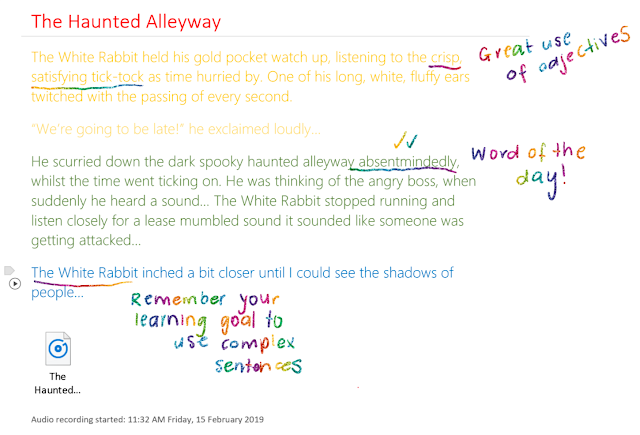
Specific, timely and goal-related feedback is key to helping students progress in their learning. In a bustling classroom with a jam-packed timetable, I struggled to find time to provide quality feedback to all of my students on a regular basis. With OneNote Class Notebook, feedback became a regular part of my daily and weekly routine due to these three time-saving features. Audio and Inking OneNote offers teachers the ability to mark and annotate student work using digital ink whilst at the same time recording audio feedback directly onto the OneNote page. I found that using a stylus to mark students' work provided a personal touch and showed students that their teacher had engaged with their work rather than 'impersonal' standard typed text. The great thing about this is that OneNote will automatically connect what you were saying at the time with any annotations you make on the page. Therefore if you are marking an extensive piece of writing with a lot o...

Digital Modelling Books in OneNote

Image
Digital inking is enabling teachers to reimagine how they deliver their learning experiences in new and exciting ways. One of the ways inking transformed the way I taught was by allowing me to shift my modelling from a traditional paper modelling book to a digital notebook with unlimited pages… also known as OneNote! Quick Lesson Prep With a few clicks, you can have the reading text for the day inserted onto a OneNote page and use the OneNote  Draw tools  to highlight and annotate keywords, new vocabulary and record questions. Now when you find a relevant article you can simply print it to the OneNote page, ready to highlight and annotate. Alternatively, you can insert a printout of a PDF or document directly onto the page!  Tip: Right click on the printout select 'Picture' and 'Set Picture as Background' to stop the printout from moving around and causing your annotations to lose their alignment with the text. Student Engagement Traditionally...

Tag, You're It!

Image
Tags in OneNote As announced by the OneNote team, Windows 10 and Mac OneNote users now have the ability to create and use custom tags. The update includes the ability to: ·         Create new custom tags ·         Search for custom tags ·         Have roaming tags across devices ·         Gather existing tags in a notebook and save as your own This is an exciting feature for both teachers and students as tags can be used to create to-do lists, identify important information and can now be customised to suit your own needs. Here are my top three ways of utilising tags in the classroom: To Do Tags: Using the Content Library in OneNote Class Notebook is a great way to create and share lessons with students. 'To do' tags in OneNote provide students with a clear and logical way to work through tasks that have multiple steps. W...

From Paper to Digital, Real Quick!

Image
If there is one app you need on your phone immediately, it's Office Lens developed by Microsoft. Imagine having a mini scanner in your pocket that allows you to take photographs of documents, whiteboards and business cards on your mobile and instantaneously send them to your camera roll, mail, OneDrive, OneNote Notebook or turn into a PDF. Well, Office Lens does just that and is available across a range of platforms including iOS, Android and Windows. Assessment  As a teacher, Office Lens can change how you store and access documents. An overflowing assessment folder with loose papers and documents is no longer necessary, simply take a photo of each assessment paper using Office Lens and instantly send it to an ‘Assessment’ section in OneNote. Traditionally, I would have taken hours at the copier, remembering how to scan and email documents to myself then save each scan as an image once I returned to my computer... A tedious process that takes time many of us just don’t ...